What Remo Does
One App, Every TV in the House
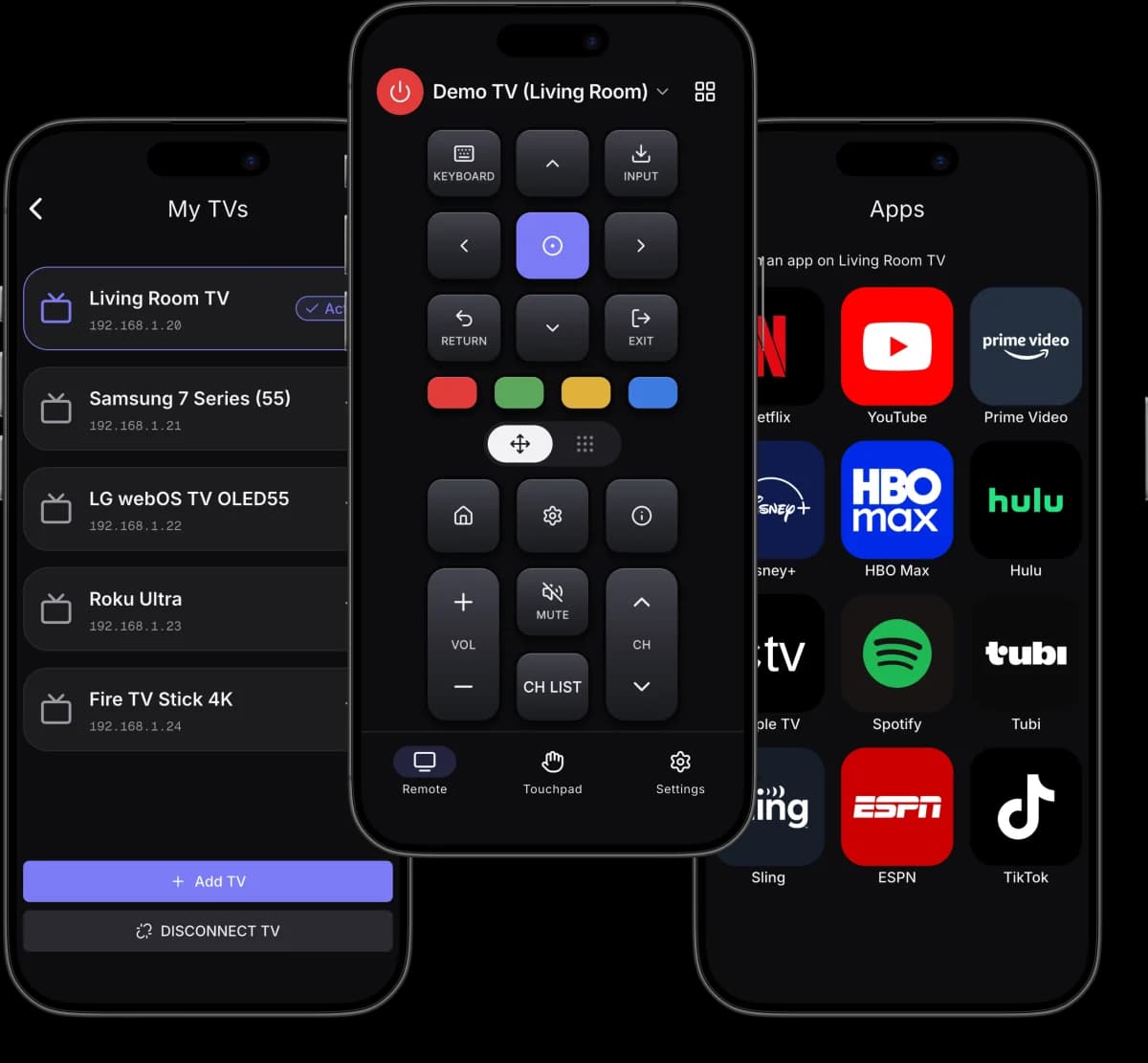
Remo supports 7 smart-TV platforms and adds the things a plastic remote cannot do — typing with your phone keyboard, a swipe touchpad, and opening streaming apps in one tap.
Works With 7 TV Platforms
Remo controls Roku, Samsung Tizen, LG webOS, Android TV, Google TV, Sony, Vizio SmartCast and Amazon Fire TV from one iPhone app, so a single remote replaces every clicker in the house.
Paired in About 10 Seconds
Remo scans your Wi-Fi, lists every TV it finds with the brand already identified, and connects — usually before you would have finished looking for the plastic remote.
Every Button, Including the Keypad
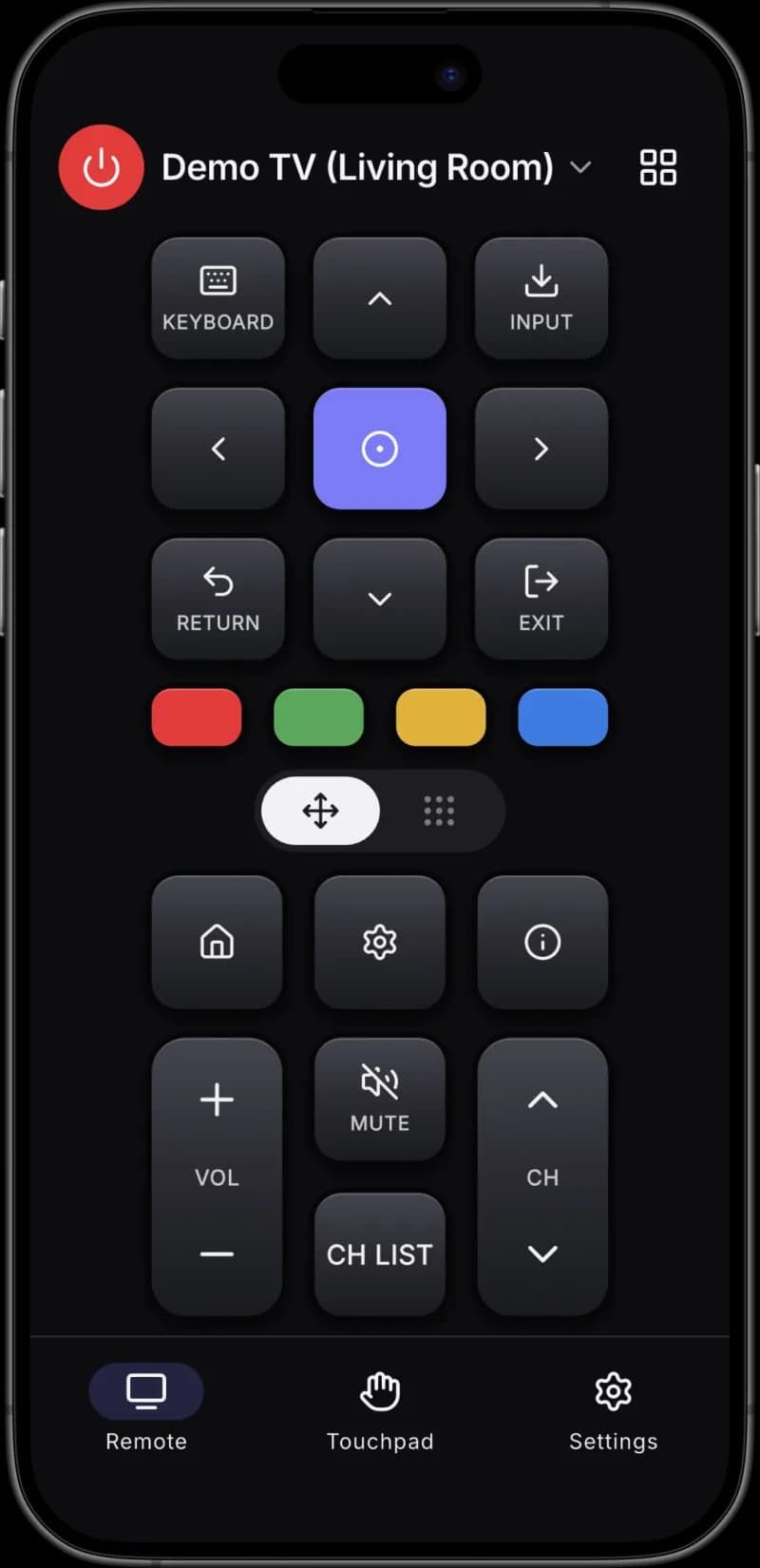
Remo sends the full set: D-pad, OK, back, home, a 0–9 keypad for direct channel entry, volume and channel rockers, mute, input and the four colour keys.
Type on the TV With Your Phone
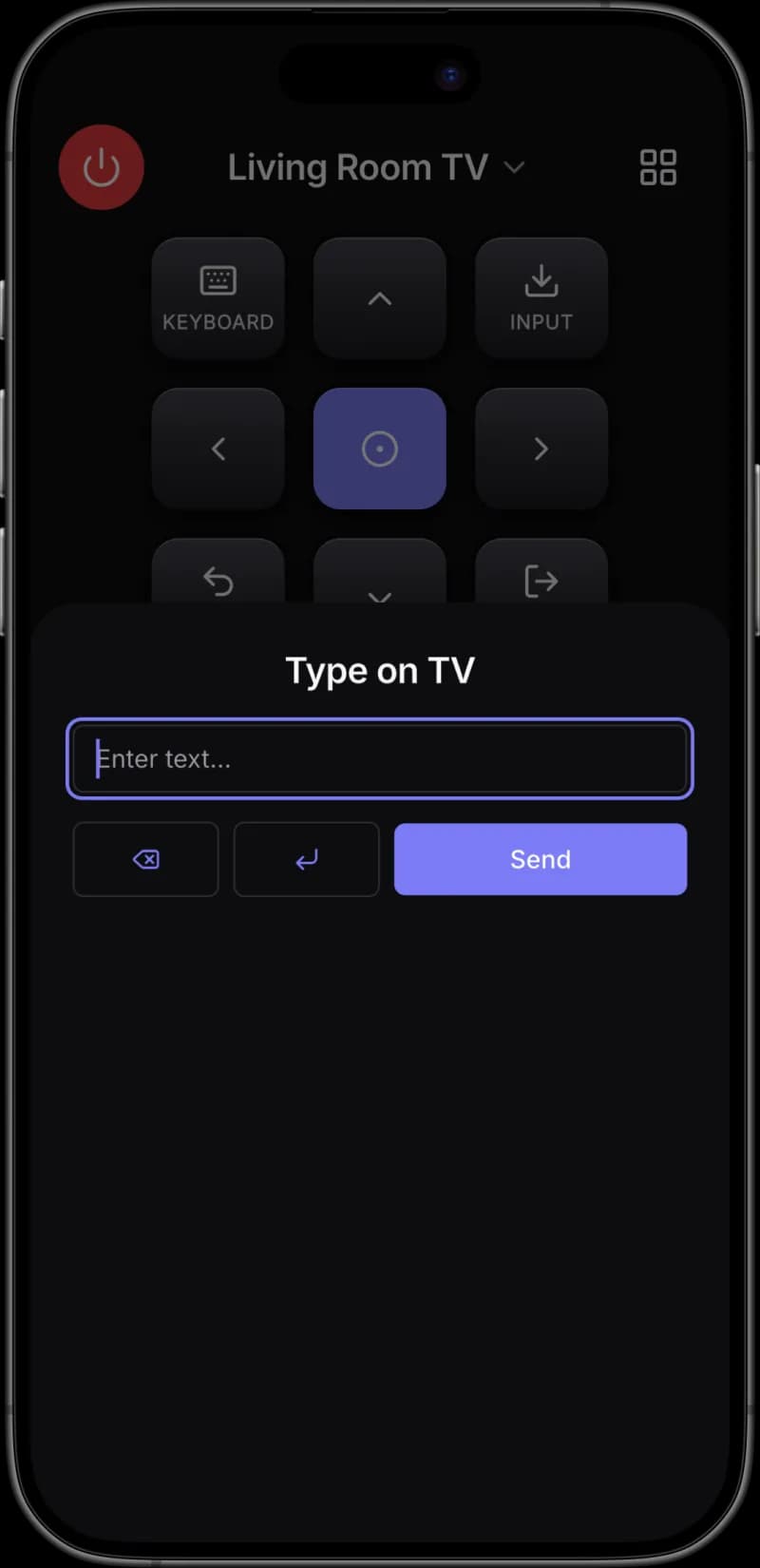
Remo sends text straight to the focused field on your TV, so a Netflix or YouTube search takes one line of typing instead of thirty taps on an on-screen keyboard.
Swipe Touchpad for Menus
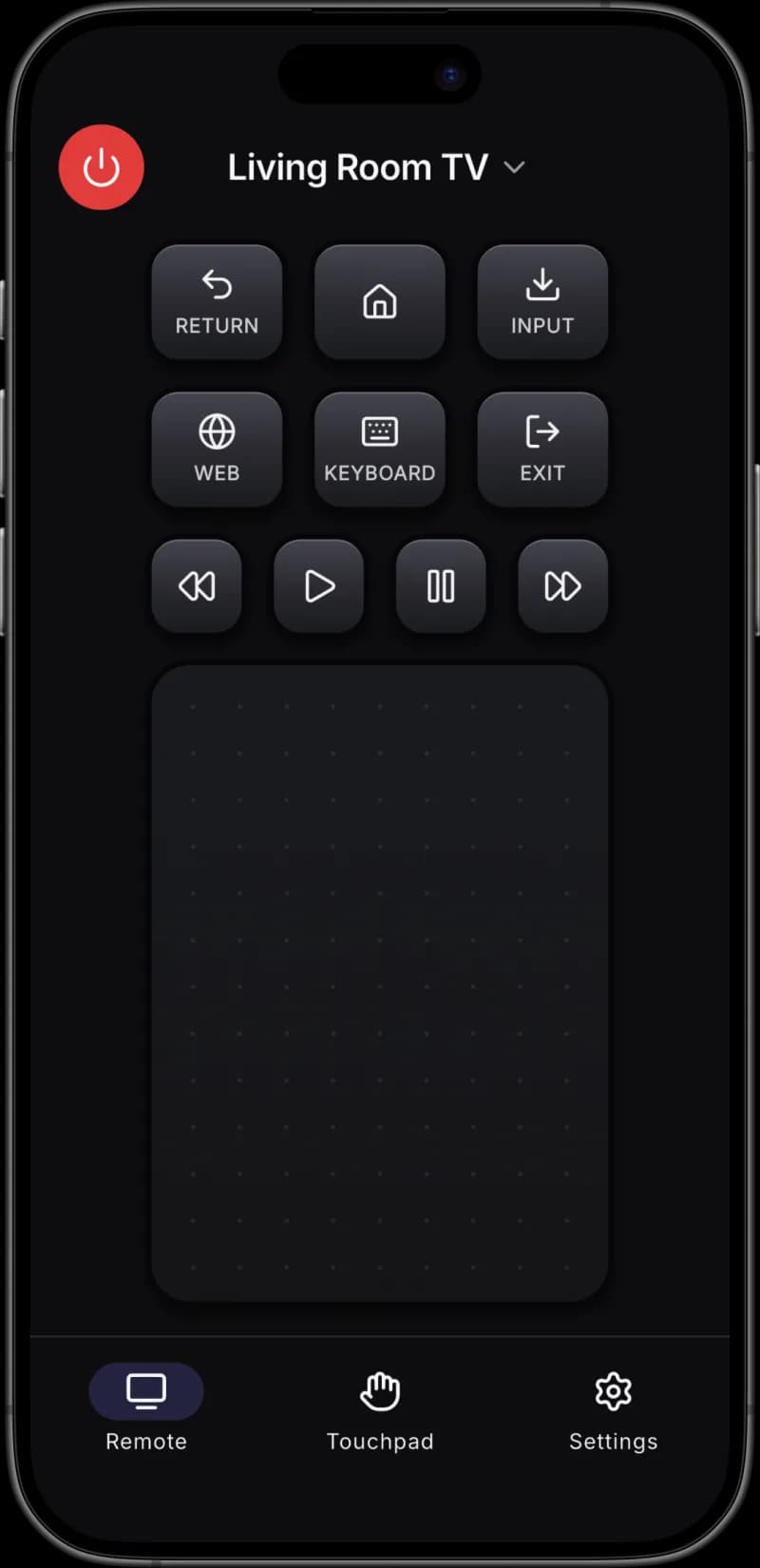
Remo's touchpad moves the TV cursor like a laptop trackpad, which makes Android TV and Google TV menus noticeably faster than pressing arrow keys.
Open Apps in One Tap
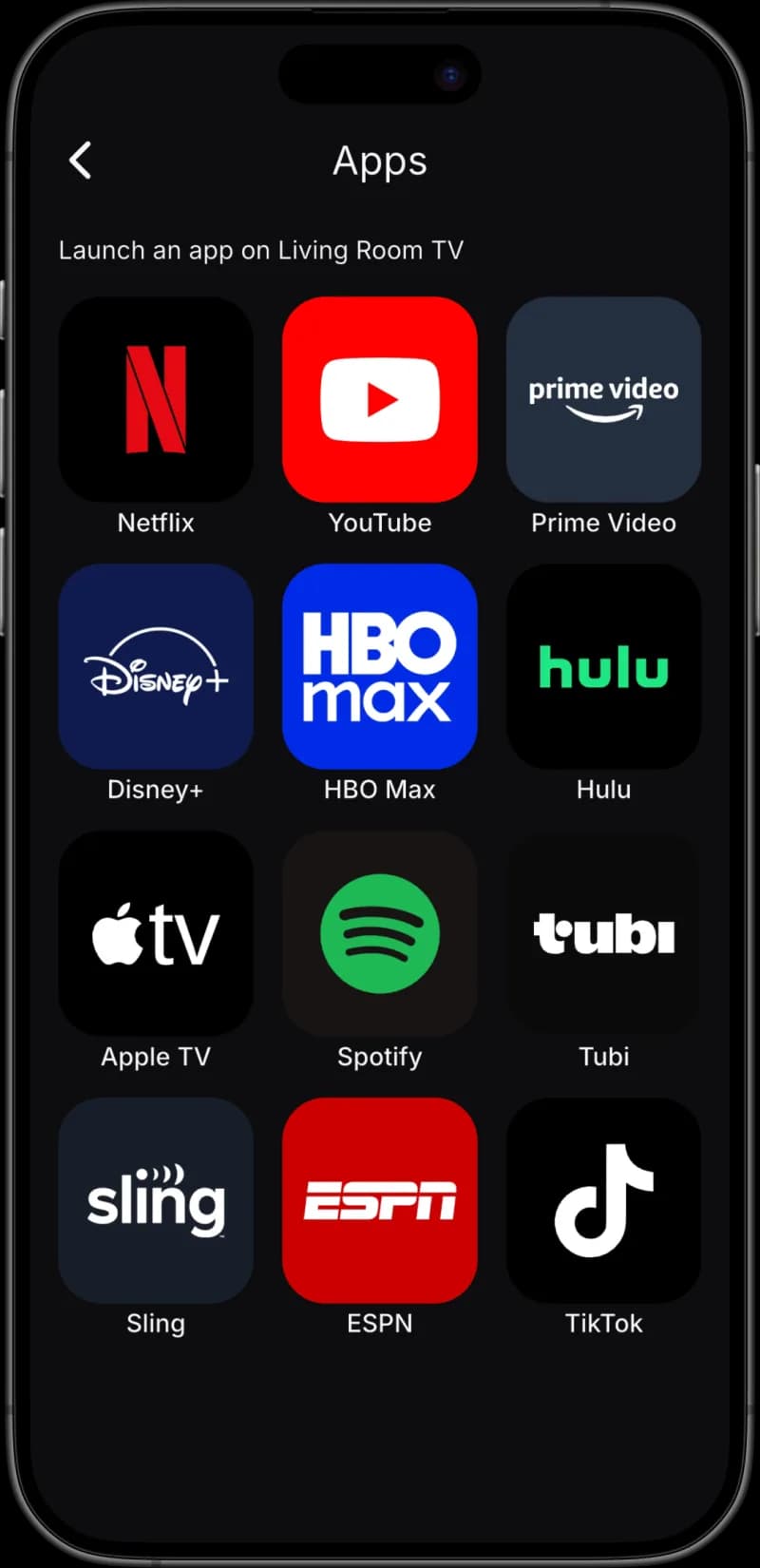
Remo launches Netflix, YouTube, Prime Video, Disney+, HBO Max, Hulu, Apple TV, Spotify, Tubi, Sling, ESPN and TikTok directly on the TV, skipping the TV's own home screen.
No Account, No Cloud
Remo talks to your TV over your own Wi-Fi. There is no sign-up, and saved TVs and pairing keys stay on your iPhone instead of on a server.
39 Languages, 5 Remote Skins
Remo ships fully translated into 39 languages and lets you restyle the remote with Classic, Snow, Midnight, Retro or Glass themes.
How It Works
Three Steps From Install to Channel Change
Remo needs your iPhone and your TV on the same Wi-Fi network. There is nothing to plug in, nothing to configure on the router, and no account to create.
Open Remo on the Same Wi-Fi
Remo scans your home network and lists every TV it finds, with the brand already identified — Roku, Samsung, LG, Android TV, Google TV, Sony, Vizio or Fire TV.
Tap Your TV to Pair
Samsung and LG ask you to approve the phone once on screen. Android TV and Google TV show a 4-digit code you type into Remo. Roku needs no pairing at all.
Control Everything From Your Phone
Use the full remote, the number keypad, the swipe touchpad or your phone keyboard — and tap the apps grid to open Netflix, YouTube or any of 12 services on the TV.
Screenshots
See Remo in Action
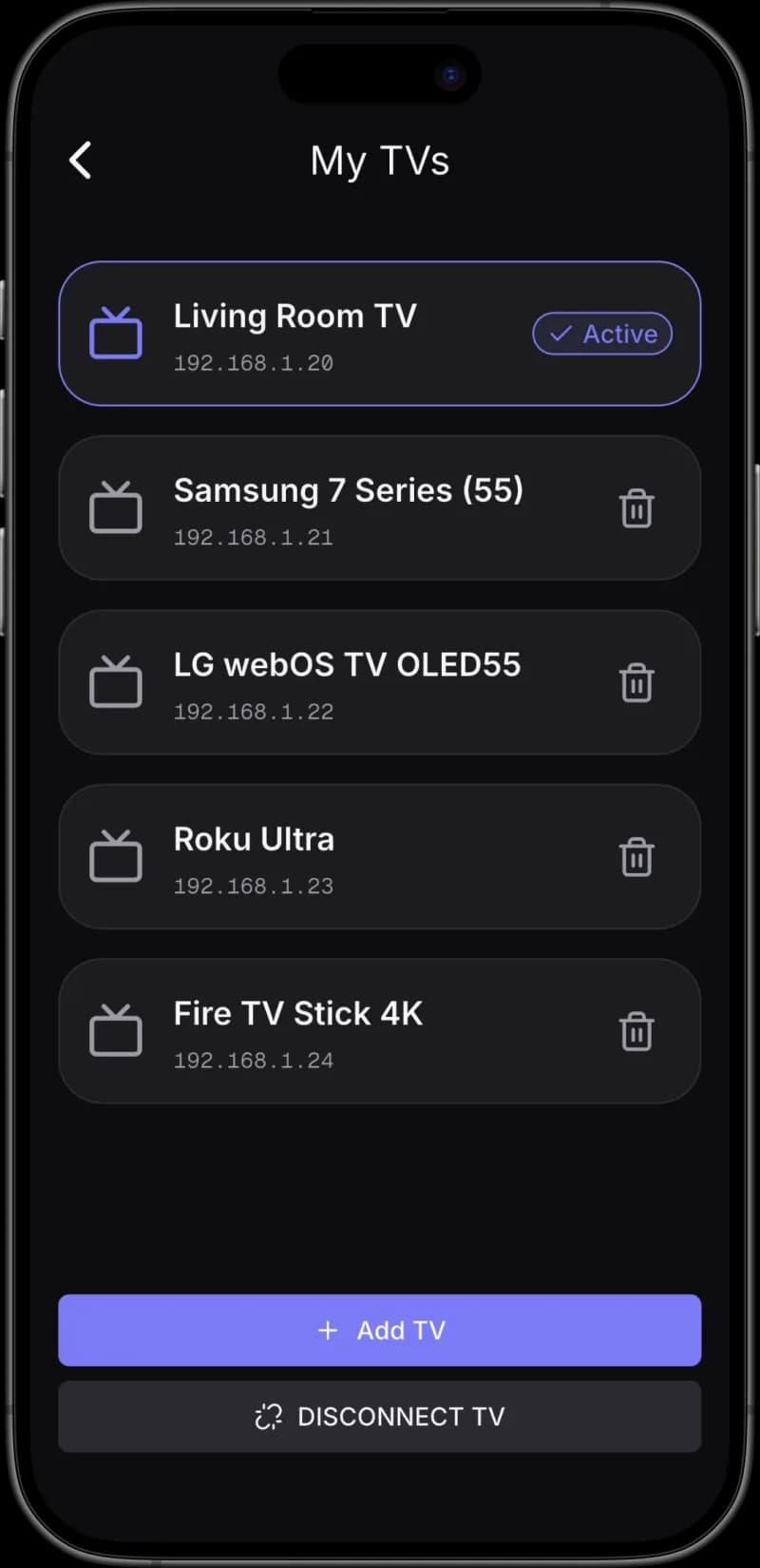
The remote, the apps launcher, the touchpad, the keyboard and multi-TV switching.
FAQ
Questions About Remo
Compatibility, pairing, typing on the TV and pricing.