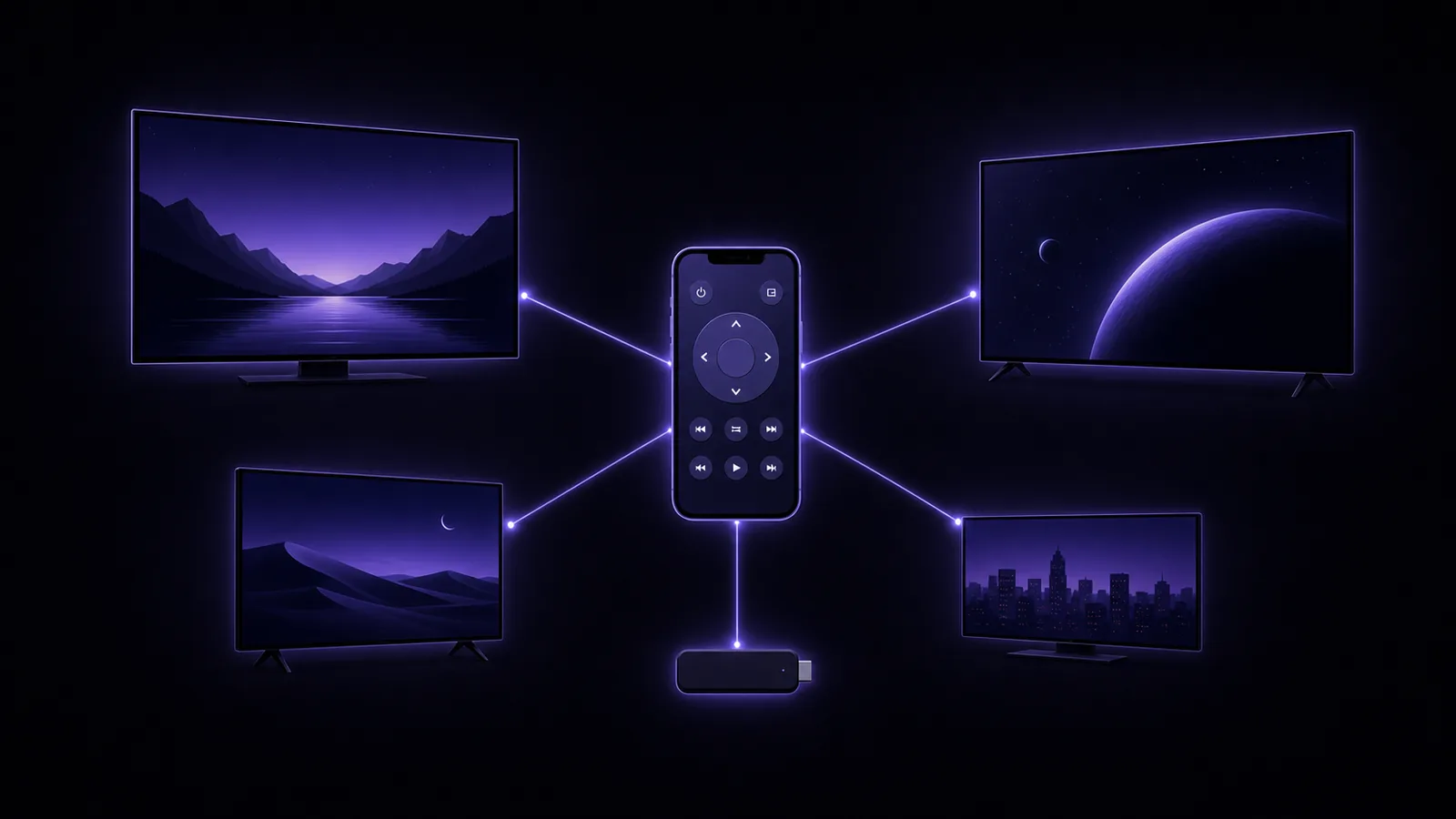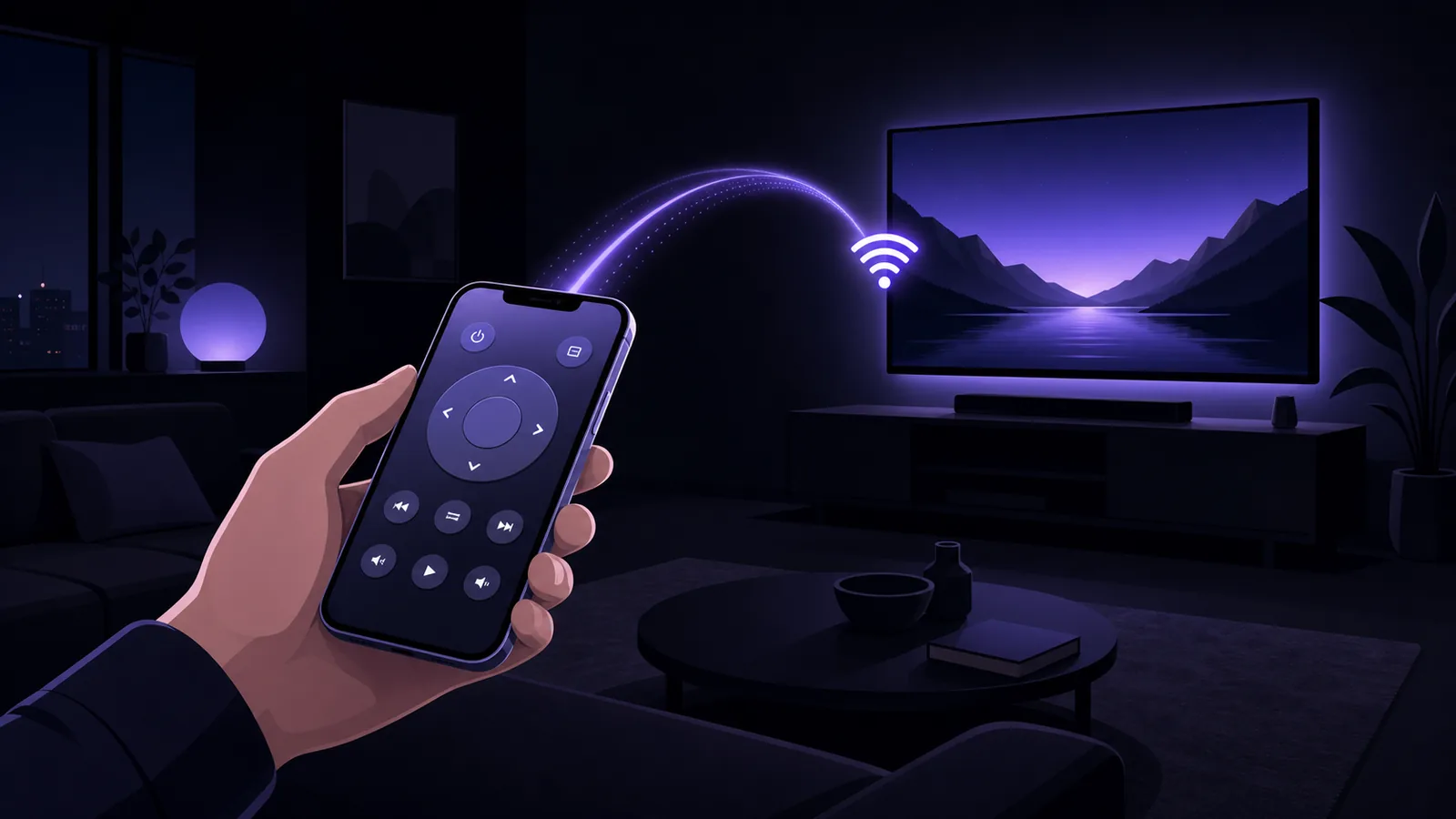
Lost the Magic Remote, or just tired of waving it around? Every LG smart TV made since 2014 runs webOS, and webOS was built from day one to accept remote commands over your home network. That means your phone can do everything the physical remote does — navigation, volume, app launching, even typing into search boxes — with no extra hardware.
This guide covers the three ways to control an LG TV from a phone, exact setup steps, the settings that trip people up, and honest advice on which option fits which situation.
What an LG TV accepts over the network
LG's webOS TVs expose a local WebSocket interface (LG calls the underlying system SSAP). When an app connects for the first time, the TV shows a permission prompt; once you accept, the TV hands the app a client key that it stores and reuses — which is why you only ever approve once. Over that connection an app can:
- Send every remote button: D-pad, OK, back, home, volume, channel, mute, the colour keys
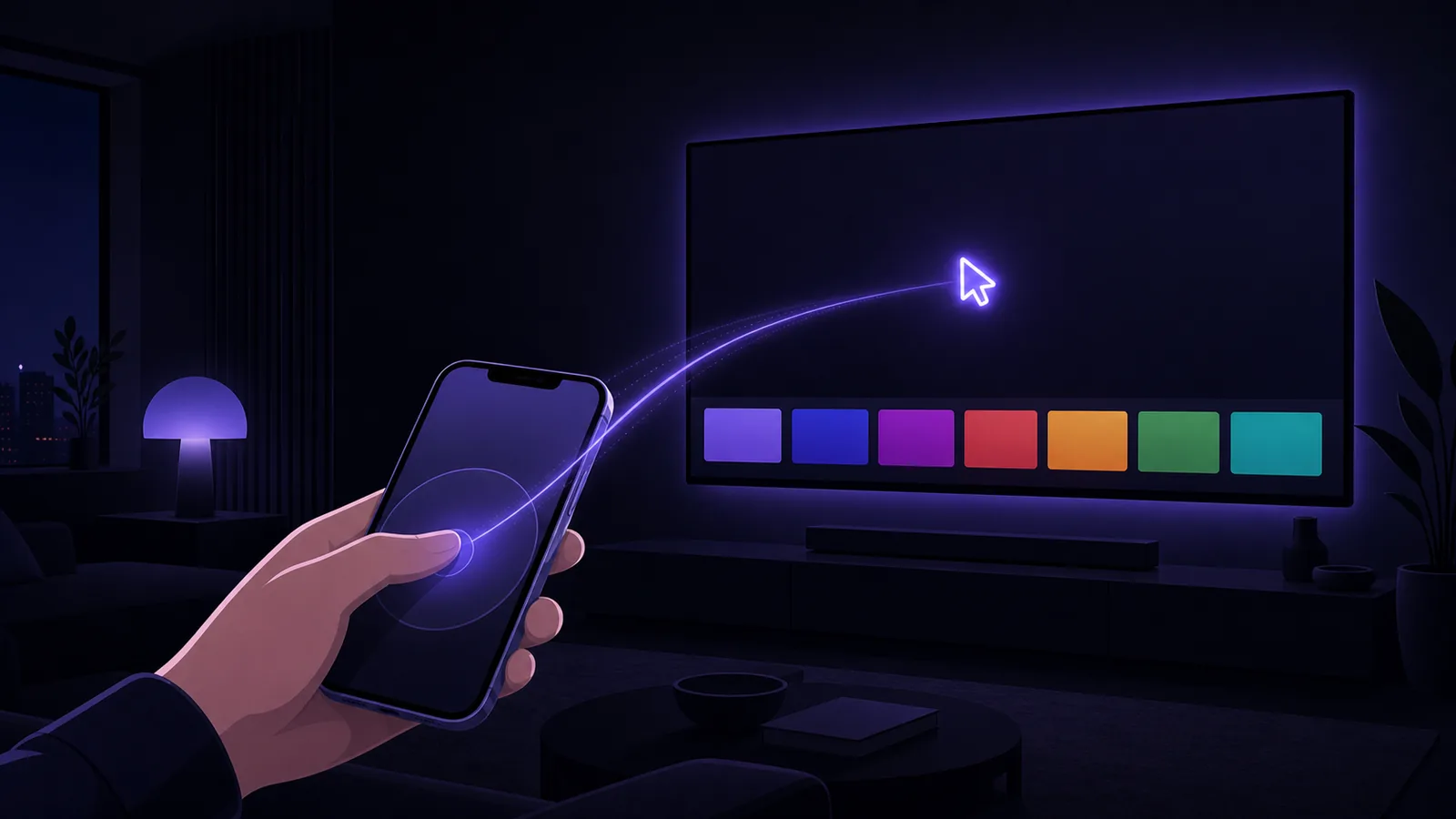
- Move the Magic Remote-style pointer and click
- Launch installed apps (Netflix, YouTube, Prime Video and anything else on the TV)
- Type text directly into on-screen input fields and delete characters
- Read the app list, switch inputs, and power the TV off
Everything happens on your Wi-Fi network — no LG account, no cloud round-trip, and commands work from anywhere in the house because there's nothing to aim.
Option 1: LG ThinQ — the official app
LG's own ThinQ app (free, iOS and Android) includes a remote alongside its smart-home features. It's the right choice if you're already in LG's ecosystem — it also manages LG appliances — and it costs nothing.
What to expect:
- You'll need an LG account and the usual location/notification permission prompts before you reach the remote.
- The remote screen is a few taps deep in a large smart-home app, because the remote is one feature among many.
- It controls LG devices only. A Roku stick or a Fire TV in another room needs a different app.
Option 2: A universal remote app
A universal TV remote app like Remo speaks LG's webOS protocol natively — same pairing prompt, same client key mechanism, same capabilities including the pointer-input channel LG uses for navigation buttons. The differences in practice:
- No account. Scan, tap the TV, press "Allow" on the LG's screen, and you're controlling it. The pairing is remembered.
- One app for every brand in the house. Remo also controls Roku, Samsung, Android TV, Google TV, Sony, Vizio and Fire TV with the same layout — if your household mixes brands, this is the main reason to choose universal over official. Our iPhone TV remote guide explains how each brand's protocol works.
- Keyboard first. Type a Netflix search on your phone keyboard instead of pecking at the on-screen letter grid with arrow keys; Remo forwards keystrokes (and backspace, and enter) straight into webOS input fields.
- One-tap app launching from a grid that shows the TV's actually-installed apps with their real icons — webOS reports its app list over the same connection.
Option 3: The physical route — replacing the remote
Honesty requires saying it: if what you want is a hardware remote again, LG sells Magic Remote replacements, and generic infrared LG remotes cost very little online. A phone app is better when you want keyboard input, multi-TV control, or a remote that's always in your pocket. A hardware remote is better for household members who don't want to unlock a phone to change channels. Many homes sensibly run both.
Setting up a phone remote with an LG TV, step by step
- Put the phone on the same Wi-Fi as the TV. Same network, not the guest SSID.
- Turn the TV on with the physical remote or the body button this first time.
- Scan from the app. webOS TVs answer standard network discovery within a few seconds; the TV appears with its model name.
- Press "Allow" on the TV. LG shows a permission banner when the app first connects — approve it with whatever remote or button you have. This stores the client key; you won't be asked again.
- Test the keyboard. Open YouTube search on the TV, tap the keyboard button in the app, and type. If letters appear on screen, everything is paired correctly.
Troubleshooting an LG TV that won't pair
- The permission prompt never appears. Check Settings → Network (or Connection) → LG Connect Apps / Mobile TV On / device connection settings depending on webOS version — network control can be gated behind these. Toggling them on and rescanning fixes most cases.
- The TV doesn't show up in the scan. Almost always a network issue: phone on cellular or guest Wi-Fi, TV on Ethernet in another subnet, or router "AP isolation" blocking device-to-device traffic. Our iPhone remote guide's troubleshooting section walks through each.
- Paired before, "not responding" now. The TV's IP address probably changed after a router reboot. Rescan once; a good app re-finds the TV and reuses the stored client key without a new prompt.
- Power-on doesn't work from the phone. A fully powered-down TV isn't listening on the network. Enable the TV's quick-start option (name varies by model year) if you want network wake; otherwise use the physical button for first power-on.
- Text input works in some apps but not others. A few TV apps draw their own custom keyboards that ignore webOS text injection. That's an app-side limitation on the TV — the arrow keys still work there.
LG-specific FAQ
Does this work on all LG TVs? All webOS models — effectively every LG smart TV from 2014 onward. Older Netcast models (pre-2014) used a different system with far fewer capabilities; for those, a hardware remote is the realistic answer.
Can I move the pointer like a Magic Remote? Yes — webOS exposes the pointer over the network, and Remo's touchpad mode maps finger swipes to it, with a tap acting as click.
Do I need an LG/ThinQ account for a universal app? No. The webOS pairing is purely local: the TV itself grants the client key when you press Allow. No account exists in the flow at all.
Can the phone turn the TV off? Yes, off works over the network. On requires the TV's quick-start mode, as above.
Is the connection safe? Commands only travel on your own Wi-Fi, and nothing can control the TV without that one-time on-screen approval. Unpair anytime from the TV's connected-devices settings.
The bottom line
An LG TV is one of the easiest TVs to control from a phone: one Allow press and the network remote works forever after. If LG is the only brand you own and you don't mind an account, ThinQ is free and official. If you want a faster path to the remote itself, real keyboard search, or one app that also runs the Roku in the bedroom and the Fire TV in the den, a universal app like Remo does it all with a single layout — see how it compares in our universal remote app roundup.
Sources: LG — LG ThinQ app help library, LG webOS TV developer documentation, LG — Magic Remote support.
Remo is not affiliated with or endorsed by LG Electronics; brand names are used only to describe compatibility.