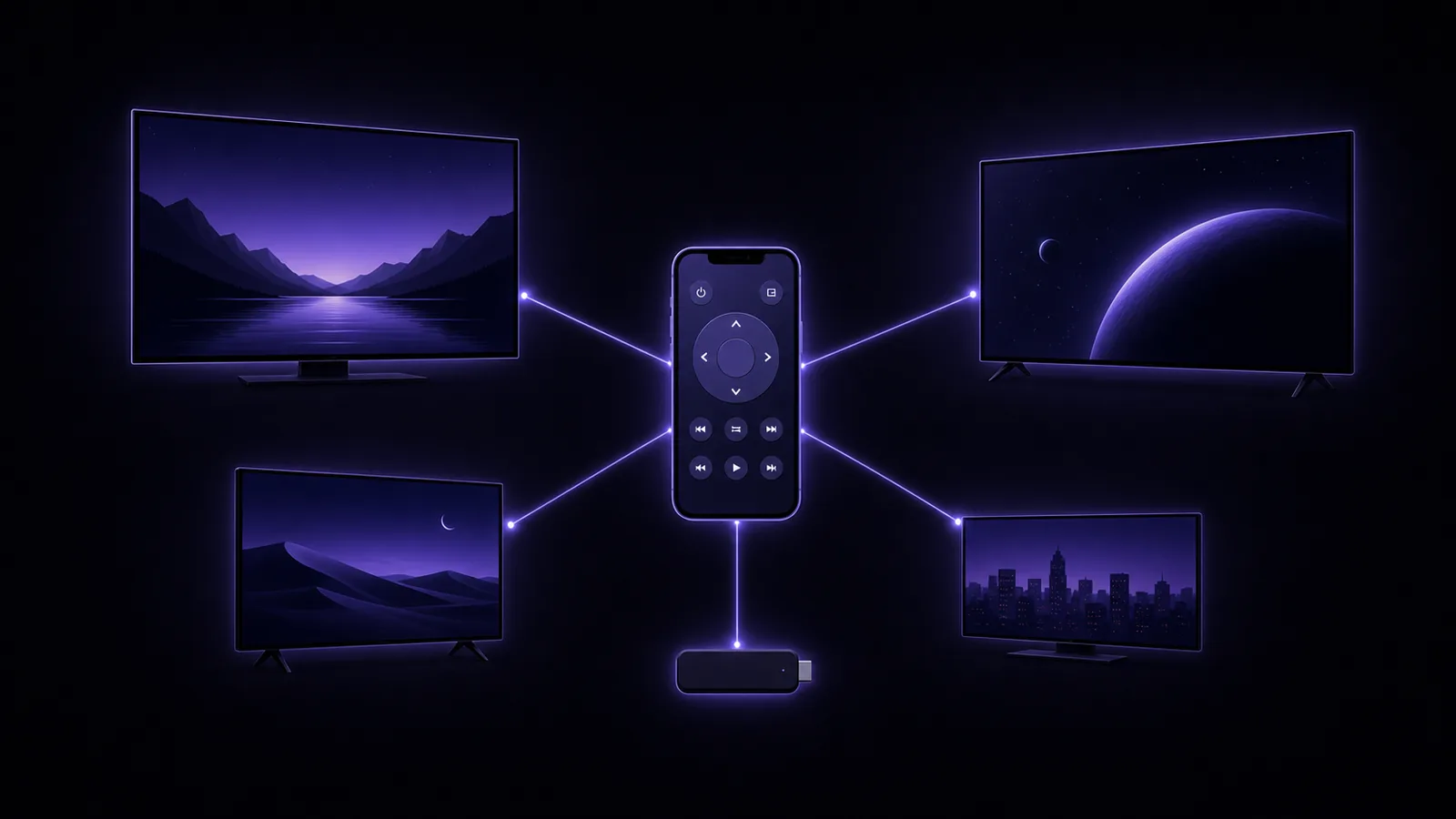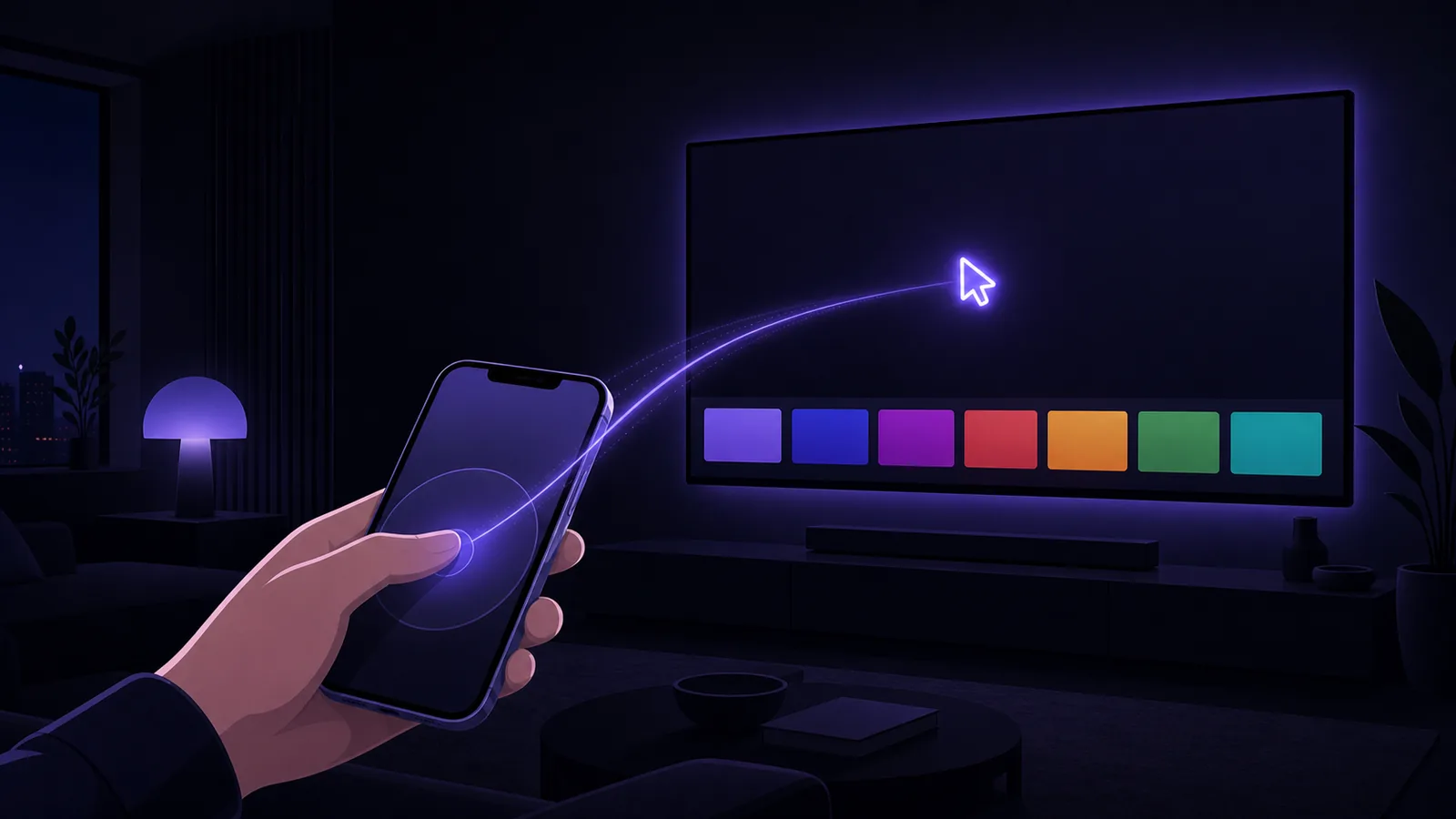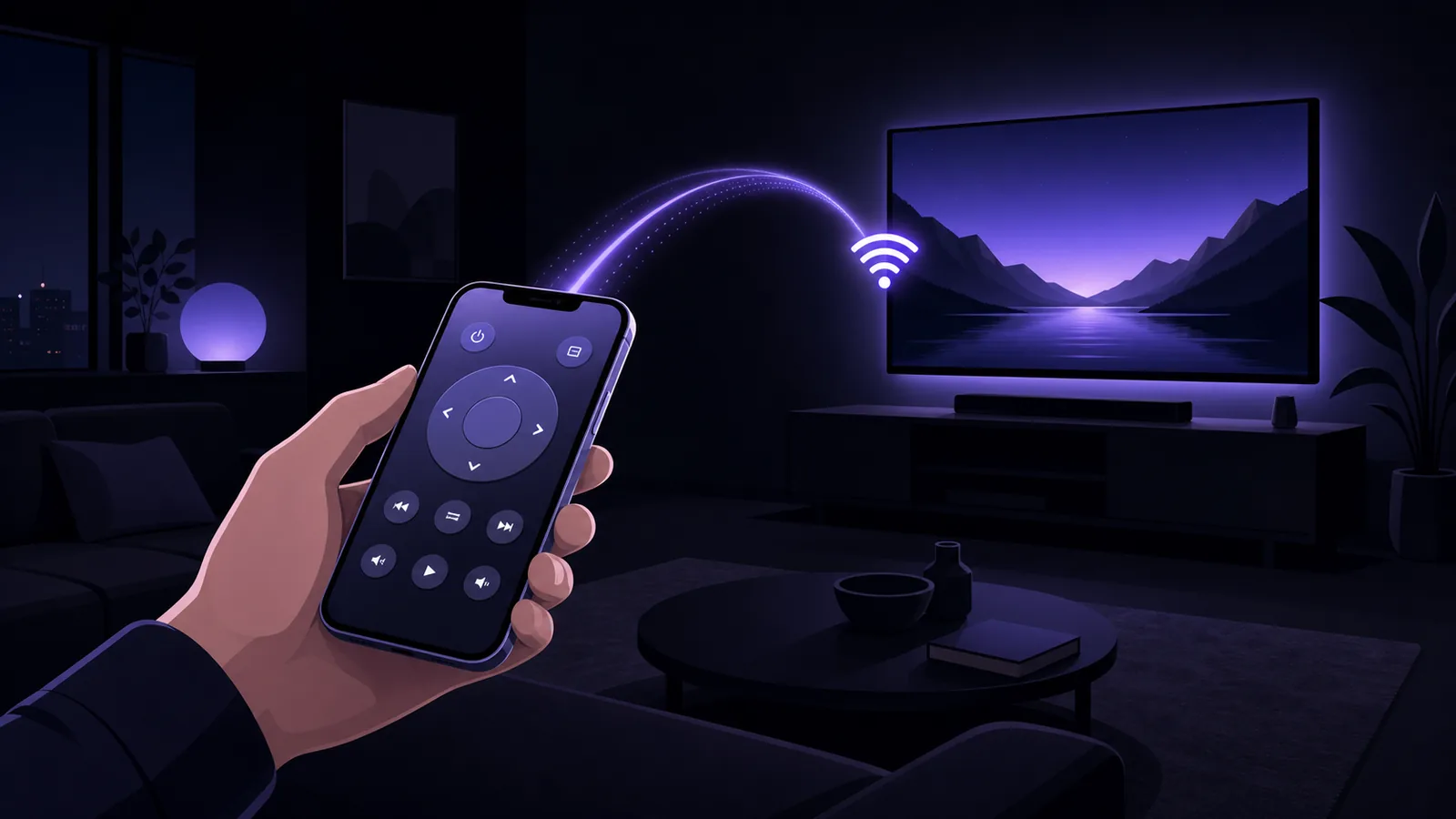
Your iPhone can replace almost any TV remote in the house — no infrared blaster, no extra hardware, no subscription to the TV maker's ecosystem. Every major smart TV platform since roughly 2016 ships with a network remote protocol built in, and a TV remote app for iPhone simply speaks that protocol over your home Wi-Fi.
This guide explains how phone-to-TV control actually works, which TVs an iPhone can control, how to set it up in under a minute, and what to do when a TV refuses to connect.
How a TV remote app for iPhone actually works
There is no infrared LED on an iPhone, so iPhone remote apps don't imitate a classic push-button remote. Instead, they use the same local-network commands the TV manufacturers built for their own official apps:
- Roku TVs and players accept plain HTTP commands on the local network (Roku's External Control Protocol).
- Samsung Tizen TVs accept a secure WebSocket connection; the TV shows an "allow this device?" prompt the first time.
- LG webOS TVs use a WebSocket pairing that stores a client key after you approve the app on screen.
- Android TV / Google TV (including many Sony and TCL sets) uses an encrypted protocol with a one-time PIN shown on the TV.
- Vizio SmartCast and Fire TV have their own local APIs with a PIN or on-screen approval.
Two practical consequences follow from this design. First, your phone and TV must be on the same Wi-Fi network — commands travel across your router, not across the internet. Second, there's nothing to point: your phone can control the TV from another room, from under a blanket, or with the screen facing the wrong way entirely.
What iPhone can do out of the box
Before installing anything, know what Apple already gives you:
- Apple TV boxes get a built-in remote in Control Center — swipe down, tap the Remote icon. It only works with Apple TV hardware, not with smart TVs themselves.
- HomeKit/AirPlay-compatible TVs can be switched on or off via the Home app, but that's power and volume at best — no D-pad, no app launching, no text input.
For an actual smart TV — a Samsung in the living room, a Roku in the bedroom — you need either the manufacturer's own app or a universal remote app.
Option 1: The manufacturer's official app
Every TV brand ships a free remote app: Roku has the official Roku app, Samsung has SmartThings, LG has ThinQ, Google TV has the Google TV app, Amazon has the Fire TV app. These work well and cost nothing, with two significant caveats:
- One app per brand. A household with a Samsung TV, a Roku stick and a Fire TV needs three separate apps, three separate accounts in some cases, and three different layouts to remember.
- They do more than remote control. SmartThings and ThinQ are full smart-home hubs; the remote is buried a few taps deep, and the apps ask for accounts, locations and permissions a remote doesn't need.
If you own exactly one TV from one brand, the official app is a perfectly good answer — we say this plainly because it's true.
Option 2: A universal TV remote app
A universal remote app like Remo implements all of those brand protocols in a single app: it scans your Wi-Fi network, lists every TV it finds — Roku, Samsung, LG, Android TV, Google TV, Sony, Vizio, Fire TV — and connects with the appropriate pairing flow for each. One layout, one app, every TV in the house.
The practical wins over juggling official apps:
- One remote layout for every TV. D-pad, volume and channel rockers, number keypad, colour keys — in the same place regardless of brand.
- Real keyboard input. Typing a search into Netflix with a TV remote's on-screen grid takes about thirty presses; typing it on your phone keyboard takes seconds. Universal apps forward your keystrokes straight to the TV's search box.
- Multi-TV switching. Remo remembers every TV it has paired with and reconnects to the last one when you open the app — no re-scanning, no re-pairing.
- App launching. Jump straight to Netflix, YouTube or Prime Video on the TV with one tap instead of navigating the TV's home screen.
For a detailed brand-specific walkthrough, see our guide to controlling an LG TV from your phone, and our comparison of universal remote apps.
Setting it up: a one-minute checklist
- Connect your iPhone to the same Wi-Fi network as the TV. Not the guest network — many routers isolate guest devices from the rest of the network.
- Turn the TV on. Most TVs don't answer discovery requests in deep standby.
- Open the remote app and scan. Discovery uses standard protocols (SSDP and mDNS); your TV should appear within a few seconds, labelled by brand and model.
- Approve the pairing on the TV. Depending on brand this is an "Allow" prompt (Samsung, LG, Fire TV) or a short PIN shown on screen that you type into the phone (Android TV, Google TV, Sony, Vizio). Roku needs no pairing at all.
- Done. The pairing is stored; from now on the app connects silently.
When the TV doesn't show up: troubleshooting
Connection problems are almost always network problems, not app problems. Work down this list:
- Different networks. The single most common cause. Check that the phone isn't on cellular data or a guest SSID, and that the TV isn't plugged into Ethernet on a different subnet.
- AP/client isolation. Some routers (and most hotel and office networks) block devices from seeing each other. Look for "AP isolation" or "client isolation" in router settings and turn it off for your home network.
- The TV's remote-control setting is off. Samsung and LG TVs have settings that gate network control (for example LG's "LG Connect Apps" / mobile TV On features, Samsung's device connection manager). If pairing prompts never appear, check the TV's network or connection settings menu.
- Local Network permission denied on iPhone. iOS asks each app for Local Network access on first launch. If you tapped "Don't Allow", the app can't see any TVs: fix it in Settings → Privacy & Security → Local Network.
- Fire TV needs ADB debugging. Amazon's local control path requires turning on ADB debugging in Fire TV's developer options, then approving the connection on screen.
- The TV is in deep sleep. Wake it once with the physical remote or power button; most brands answer network wake-ups only after "quick start" or "instant on" is enabled in the TV's power settings.
Frequently asked questions
Does a TV remote app work without Wi-Fi? No. Network remotes need a shared local network. If the router is down, neither official nor universal apps can reach the TV. (Apps that claim to control TVs via IR don't work on iPhone — the hardware simply isn't there.)
Does it work with older, non-smart TVs? Not directly — a TV with no network connection has nothing for the phone to talk to. If the TV has a streaming stick (Roku, Fire TV, Chromecast with Google TV) plugged in, you can control that, which in practice covers volume, playback and apps.
Is it safe? Can a neighbour control my TV? The protocols are local-network only, and every brand except Roku requires an explicit on-screen approval or PIN before a phone can send commands. Someone would need to be on your Wi-Fi and approved on your TV screen.
Will it drain my battery? A remote app sends a few bytes per button press. It uses dramatically less power than streaming or gaming; keeping it open for a whole movie night is a non-issue.
The bottom line
If you own one TV, its manufacturer's free app will serve you fine. If your household mixes brands — or you're tired of hunting for a plastic remote that's always in the other room — a universal TV remote app for iPhone like Remo covers Roku, Samsung, LG, Android TV, Google TV, Sony, Vizio and Fire TV with one layout, real keyboard search and instant reconnection.
Sources: Apple — Use Control Center on your iPhone, Roku — External Control Protocol documentation, Amazon — About ADB debugging on Fire TV, LG — Using the LG ThinQ app, Samsung — SmartThings support.
Remo is not affiliated with or endorsed by any TV manufacturer or streaming service; brand names are used only to describe compatibility.